

Common FAQs on Google Analytics 4 (GA4) Installation
Google Analytics 4 (GA4) is the current standard for website tracking, replacing Universal Analytics. Installation involves creating an account, setting up a property and data stream, obtaining a Measurement ID (e.g., G-XXXXXXX), and adding the tracking code to your site.
1. What do I need before starting?
- A Google account.
- Access to your website's backend or code editor.
- Basic knowledge of your platform (e.g., WordPress, Shopify).
2. How do I create a GA4 account and property?
- Go to analytics.google.com and click Start measuring or Get started today.
- Enter an account name (e.g., your business name), adjust data-sharing settings, and click Next.
- Create a GA4 property: Enter property name, time zone, currency, business details, and accept terms.
- Set up a web data stream: Select Web, enter your URL, name the stream, and click Create stream to get your Measurement ID.
3. How do I install the GA4 tracking code?
Choose one method based on your setup:
- Manual installation: Copy the Google tag (gtag.js) snippet from Admin > Data Streams > Your stream > View tag instructions > Install manually. Paste it into the
<head>section of every page (before the closing</head>tag). It starts with<!-- Google tag (gtag.js) -->and ends with</script>. Ideal for custom sites. - Plugin/integration: For WordPress, use plugins like MonsterInsights or WPCode—paste the code into the header via the plugin. For platforms like EasyStore or Shopify, install their GA4 app and input the Measurement ID.
- Google Tag Manager (GTM): Create a GTM account/container, add GA4 Configuration tag with your Measurement ID, set trigger to All Pages, and publish. Best for advanced tracking.
| Method | Best For | Complexity |
|---|---|---|
| Manual | Custom sites | Medium (requires code access) |
| Plugin | WordPress/CMS | Easy |
| GTM | Multiple tags/events | Advanced |
4. How do I verify the installation works?
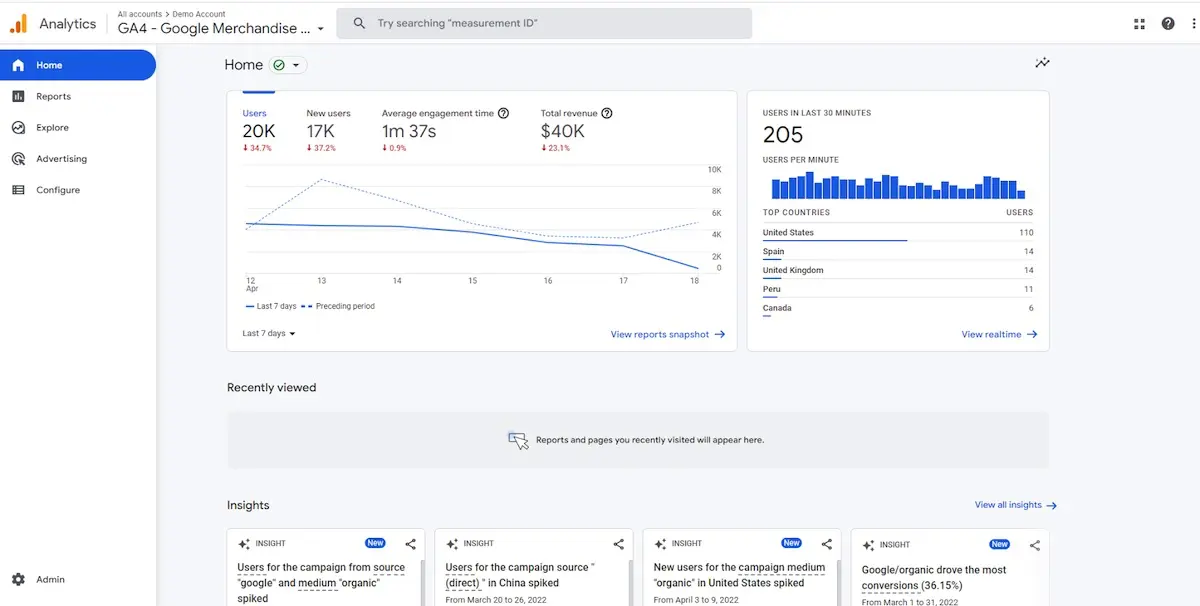
- Use GA4's Real-time report (left sidebar): Visit your site and check for active users.
- Send test traffic via GA4's debug tools or Tag Assistant Chrome extension.
- Enable DebugView in GA4 for event confirmation. If no data appears, check code placement or console errors.
5. What are common issues and fixes?
- No data showing: Ensure code is in
<head>, not footer; verify Measurement ID matches; exclude internal IP traffic post-setup. - Universal Analytics (UA) vs. GA4: UA is deprecated—use GA4 only (IDs start with G-, not UA-). Migrate if needed, but UA data can't transfer to GA4.
- Platform-specific: For apps, select Mobile app stream instead of web.
6. Post-installation best practices?
- Exclude internal traffic (Admin > Data Streams > More tagging settings).
- Set data retention to 14 months.
- Test events and use GTM Preview Mode if applicable.
For official guidance, refer to Google's setup documentation. Always verify with real-time reports after changes.















WebSeoSG offers the highest quality website traffic services in Singapore. We provide a variety of traffic services for our clients, including website traffic, desktop traffic, mobile traffic, Google traffic, search traffic, eCommerce traffic, YouTube traffic, and TikTok traffic. Our website boasts a 100% customer satisfaction rate, so you can confidently purchase large amounts of SEO traffic online. For just 40 SGD per month, you can immediately increase website traffic, improve SEO performance, and boost sales!
Having trouble choosing a traffic package? Contact us, and our staff will assist you.
Free consultation