

Step-by-Step Guide to Setting Up Google Analytics 4 (GA4) for a Student News Blog
Assuming your student news blog runs on WordPress (common for educational sites like Edublogs or self-hosted setups), use Google Analytics 4—the current standard as of 2025—for tracking visitor stats like page views, sources, and engagement. This hands-on example uses the simplest manual method via the gtag.js code snippet, ideal for beginners without plugins.
Step 1: Create a Google Analytics Account and Property
- Go to analytics.google.com and sign in with a Google account (use a school email if available).
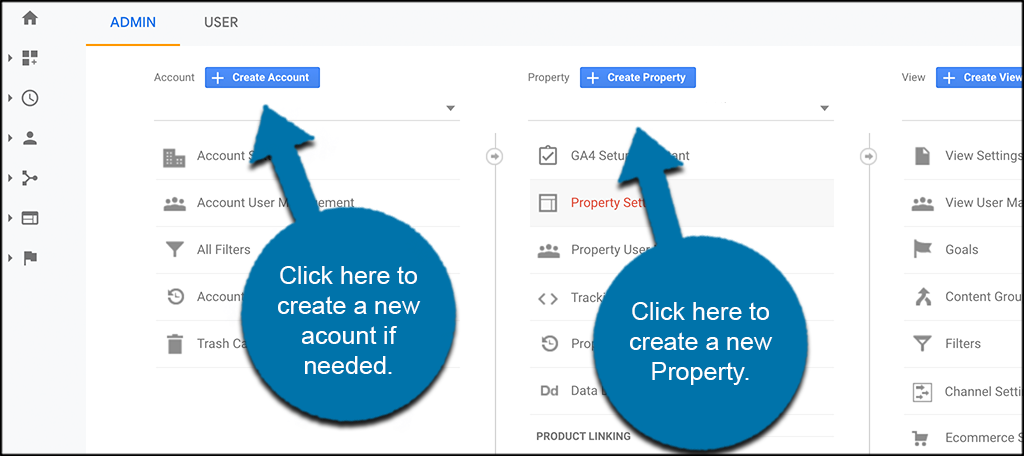
- Click Start measuring or Admin > Create Property.
- Enter your blog details: Property name (e.g., "Student News Blog"), Reporting time zone (e.g., UTC+8 for Singapore), and Currency (e.g., SGD).
- Select Web as the platform, enter your blog URL (e.g., mystudentnews.wordpress.com), and click Create.
- Choose Get baseline reports for full data access, then click Create.
Step 2: Set Up a Data Stream and Get Your Measurement ID
- In your new property, go to Admin > Data Streams > Add stream > Web.
- Enter your blog URL and stream name (e.g., "Student News Blog Stream"), then create it.
- Copy the Measurement ID (format: G-XXXXXXXXXX) from Stream Details.
Step 3: Install the Tracking Code on Your Blog
For Edublogs/WordPress student blogs (Pro or Class-attached):
- Log in to your blog dashboard.
- Go to Statistics + GTM > Accounts > Connect with Google and grant access.
- Paste your Measurement ID in Statistics + GTM > Google Analytics > Accounts.
- Select your blog's Analytics profile from the dropdown and click Save Changes.
For standard self-hosted WordPress (no Edublogs):
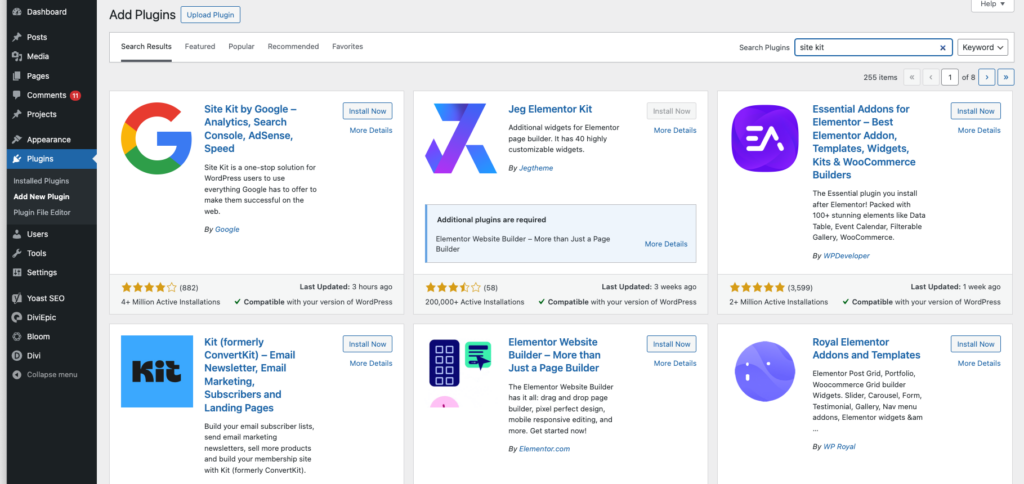
- Install a free plugin like WPCode or Site Kit by Google for easy insertion (recommended over manual edits).
- In WPCode: Go to Code Snippets > Header & Footer, paste the full gtag.js code (from GA instructions) into the Header section, and save.
- Example gtag.js snippet (replace G-XXXXXXXXXX with your ID):
<!-- Google tag (gtag.js) -->
<script async src="https://www.googletagmanager.com/gtag/js?id=G-XXXXXXXXXX"></script>
<script>
  window.dataLayer = window.dataLayer || [];
  function gtag(){dataLayer.push(arguments);}
  gtag('js', new Date());
  gtag('config', 'G-XXXXXXXXXX');
</script>
- Example gtag.js snippet (replace G-XXXXXXXXXX with your ID):
- If manual: Edit header.php in your theme (Appearance > Theme Editor), paste after
<body>tag, save, and upload.
Verify setup: Use GA's Real-time report to check live visits (data may take 24 hours to fully populate).
Step 4: Configure Privacy and Indexing (Student Blog Essentials)
- In blog Settings > Reading, set to Allow search engines to index this site for public traffic.
- Add a privacy note (e.g., via cookie banner plugin) as GA4 collects user data—comply with school policies.
- Enable Enhanced Measurement in GA4 Admin for automatic event tracking (scrolls, clicks).
Step 5: View and Analyze Data
- Access reports at analytics.google.com: Real-time (live users), Audience (demographics), Acquisition (traffic sources), Engagement (popular posts).
- Track student news metrics: Top pages (e.g., sports vs. campus news), referral sources (social shares).
- Data loads in Dashboard > Statistics within 24 hours.
Tips for Students: Start with default reports; ignore advanced GTM unless needed. Test on a staging site. If on platforms like Blogger or Wix, use their built-in GA fields. Data is anonymous and free—perfect for monitoring blog growth.
















WebSeoSG offers the highest quality website traffic services in Singapore. We provide a variety of traffic services for our clients, including website traffic, desktop traffic, mobile traffic, Google traffic, search traffic, eCommerce traffic, YouTube traffic, and TikTok traffic. Our website boasts a 100% customer satisfaction rate, so you can confidently purchase large amounts of SEO traffic online. For just 40 SGD per month, you can immediately increase website traffic, improve SEO performance, and boost sales!
Having trouble choosing a traffic package? Contact us, and our staff will assist you.
Free consultation