

Enable Built-in Bot Filtering
Google Analytics automatically excludes known bots and spiders in GA4 properties, with no option to disable it. For Universal Analytics (UA) views, manually enable "Exclude all hits from known bots and spiders" in Admin > View Settings.
Distinguish UA vs. GA4 Approaches
Universal Analytics (legacy):
- Use Referral Exclusion List in Admin > Property > Tracking Info to block spam domains like urlumbrella.com, preventing them from appearing as referrals (traffic may shift to "Direct").
- Create custom filters in Admin > View > Filters to exclude by IP, hostname, city, ISP, or user agent; test on a non-primary view first.
- Set up custom alerts for spikes in direct/referral traffic.
Google Analytics 4 (GA4, recommended):
- GA4 auto-filters known bots, reducing spam compared to UA.
- Add spam domains to Unwanted Referrals list in Admin (though GA4 lacks direct referral filtering, shifting to Direct).
- Apply temporary exclude filters or segments in reports, Explorations, or Comparisons (e.g., exclude high bounce rates, suspicious regions, or event spam); cannot save standard filters permanently.
- Filter by IP addresses (limited due to privacy; mainly for internal traffic) via Admin > Data Streams > Configure tag settings > Define internal traffic.
| Method | UA Support | GA4 Support | Pros | Cons |
|---|---|---|---|---|
| Bot Filtering Toggle | Yes (View level) | Auto-enabled | Simple setup | UA-only; retrospective data unchanged |
| Referral Exclusion | Yes (Property level) | Yes (Unwanted Referrals) | Blocks domains | May reclassify as Direct |
| IP/Hostname Filters | Yes (View filters) | Limited (internal only) | Precise | Privacy limits in GA4; needs server logs |
| Report Segments/Filters | Limited | Yes (Explorations/Comparisons) | No data alteration | Must reapply each time |
Block Bots at Source (Server-Side)
- Edit .htaccess (Apache) or nginx config to deny IPs, IP ranges, user agents, or referrers (e.g.,
Deny from 234.45.12.33; customize from server logs). - Update robots.txt to block bad bots (e.g.,
User-agent: BadBot Disallow: /). - Use tools like Google Tag Manager (GTM): Set
traffic_typeparameter to flag bots, prevent tag firing, or block via IP/headers. - Third-party options: Stape Bot Detection (adds headers to filter in sGTM), Cloudflare (threat scores, IP blocks), or DataDome for dashboards/alerts.
Detect and Monitor Spam
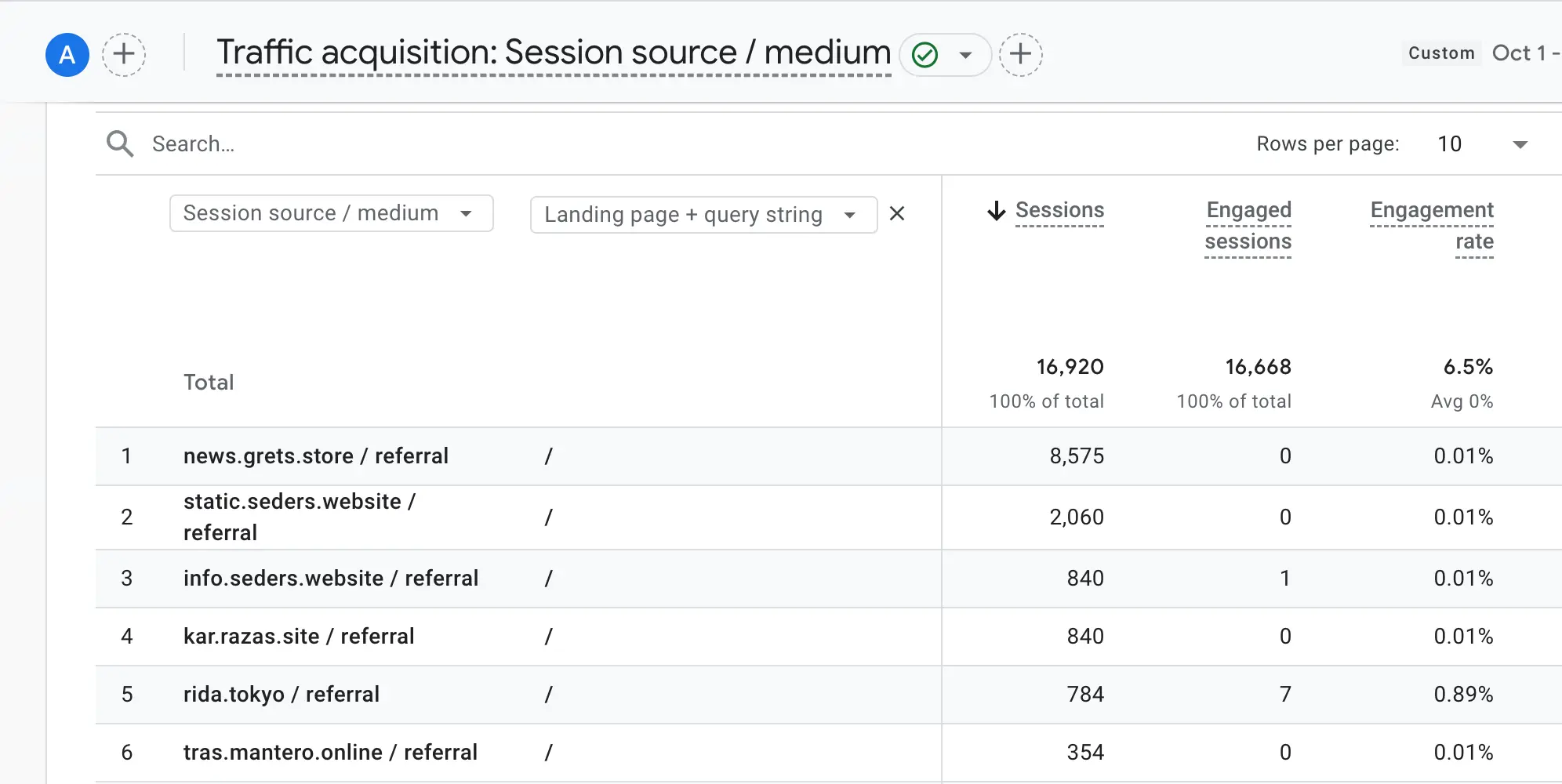
- Check for anomalies: Sudden spikes in direct/referral traffic, high bounce rates, impossible geographies, or event spam (e.g., via server logs or anti-spam plugins).
- Add annotations to charts noting spikes.
- Implement data quality reviews: Monitor reports regularly, segment suspicious traffic (e.g., low engagement).
- Good bots (e.g., Googlebot) should also be filtered from analytics to avoid skewing data.
These steps minimize spam impact without altering historical data; enable prospectively and verify via test views. For advanced setups like GTM or Cloudflare, consult server logs for specific bot signatures.














WebSeoSG offers the highest quality website traffic services in Singapore. We provide a variety of traffic services for our clients, including website traffic, desktop traffic, mobile traffic, Google traffic, search traffic, eCommerce traffic, YouTube traffic, and TikTok traffic. Our website boasts a 100% customer satisfaction rate, so you can confidently purchase large amounts of SEO traffic online. For just 40 SGD per month, you can immediately increase website traffic, improve SEO performance, and boost sales!
Having trouble choosing a traffic package? Contact us, and our staff will assist you.
Free consultation